Search

A new secure login for Quilter’s platform

Introducing a more secure and streamlined login

As part of our ongoing programme of security improvements, our new login process provides stronger security and allows the use of ‘passkey’ technology for an easier login experience.

Simply log in with your existing details and follow the verification steps.

Once logged in, you'll benefit from:

  • stronger protection with multi-factor authentication using a passcode sent to your mobile
  • one secure login to access Quilter’s platform and connected systems
  • an easier experience with the option to use new ‘passkey’ technology.
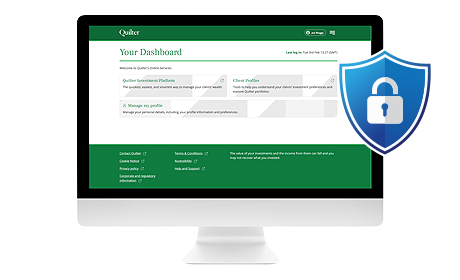
Watch: Getting started with the new login

This short walkthrough will show:

  • what you’ll see the first time you log in after the changes go live
  • how to complete the one-off verification process
  • what your new dashboard looks like.

Even quicker access with passkey

As part of these changes, we’re removing Unipass and replacing it with the option to use passkeys instead. After your first successful login, you’ll be able to set up a passkey to login. This can be extremely worthwhile, making logging in faster and easier.

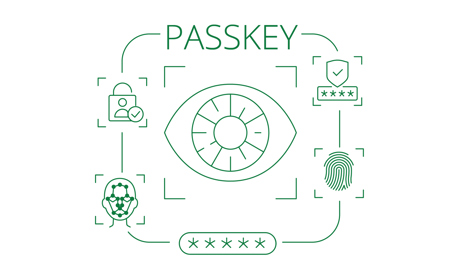
What is a passkey?

A passkey is a modern, widely used way of signing in that doesn’t rely on typing a password every time. Many well‑known organisations already use passkeys. Instead of remembering passwords, you can log in using security already built into your computer or mobile device, such as facial recognition, fingerprint scanning, or a device pin to sign in quickly and securely.

How do I set up a passkey?

Once you have successfully logged in:

  1. Go to the ‘Manage my details’ area on the new Quilter dashboard.
  2. Click the ‘Security’ tab and then ‘Add a passkey’.
  3. A one-time passcode is sent via text message to your registered mobile number – enter this code online.
  4. Follow the prompts specific to your device and you’ll be all ready to start enjoying your passkey.

You’ll still be able to use your username, password, and one-time passcode to your mobile as verification if you prefer.

Helpful tips and answers

Further support

We're here to help

Contact your usual Quilter platform specialist who will be happy to help.

Platform specialists Platform specialists

Adding new users, or updating existing users?

Click here for step-by-step guides on how to set up a new user in your firm, or update existing user permissions and contact details.

Manage your users' access permissions Manage your users' access permissions