
The page you were trying to view is not available for your role.
Even quicker access with passkeys
The new login experience gives you the option to set up a passkey, making logging in quicker and easier
Once a passkey is set up, you won’t need to wait for a text message or enter a one-time code each time you log in. Passkeys can be particularly useful when accessing your account through a web browser on a desktop, laptop or tablet.
If you use the Quilter app, you can continue to use the security features built into your device, such as Face ID or fingerprint recognition, to access your account.
What is a passkey?
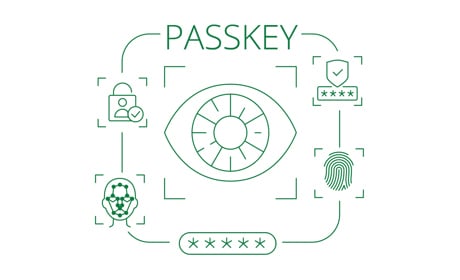
A passkey is an industry-standard way of logging in that removes the need to repeatedly type passwords or login codes. Many well-known organisations already use passkeys as part of their everyday login process.
Instead, you log in using the security already built into your computer or mobile device, such as Windows Hello, Face ID, fingerprint or a device PIN, allowing you to log in quickly and securely. This is particularly useful if you are using your desktop, laptop or tablet browser rather than the Quilter app.
How do I set up a passkey?
- Login to the online Customer Centre
- Click the ‘My details’ tab.
- Click the ‘Manage Security Details’ button and then ‘Add a passkey’.
- A one-time passcode is sent via text message to your registered mobile number – enter this code online.
- Follow the prompts specific to your device and you’ll be all ready to start using your passkey.
You’ll still be able to use your username, password, and one-time passcode to your mobile as verification if you prefer.
Helpful FAQs
Passkeys provide a quicker and more secure way to log in. Once set up, you'll be able to use the security features already built into your device instead of entering a password and one-time passcode sent to your mobile device each time you log in. View our passkey guide for more information.
Passkeys use the security features built into your device, such as Face ID, fingerprint recognition, Windows Hello or a device PIN, to verify your identity and log you in securely. View our passkey guide for more information.
No. For a quicker log in experience, setting up a passkey is recommended but is optional. You'll still be able to log in using your username, password and one-time passcode if you prefer.
You'll continue to use your username and password when logging in. You’ll also have the option to set up a passkey. If you choose to use a passkey, you won't need to enter a one-time passcode by text message each time you log in. If you don't use a passkey, you'll continue to log in using your username, password and one-time passcode.